“The website won’t open. Is it DNS?”
“When people say ‘the DNS server,’ which server do they actually mean?”
If you work in infrastructure, you hear questions like these all the time.
DNS is the mechanism that runs at the start of almost every connection: browsing the web, delivering email, signing in to Active Directory, and calls between cloud services. Most of the time nobody notices it. But when it stops, or returns a wrong answer, it shows up as a failure whose cause is hard to see.
This series explains what happens behind the scenes when a name is looked up, starting with the key players and how delegation works. From there it covers how to read responses with dig (Resolve-DnsName in PowerShell on Windows) to isolate problems, how to design and change zones and TTLs safely, how to protect DNS with DNSSEC and encrypted DNS, and how DNS is used in the cloud and on corporate networks, such as Route 53 and Active Directory-integrated DNS. Specifications and figures are current as of September 2026.
Part 1 gives you the big picture of DNS.
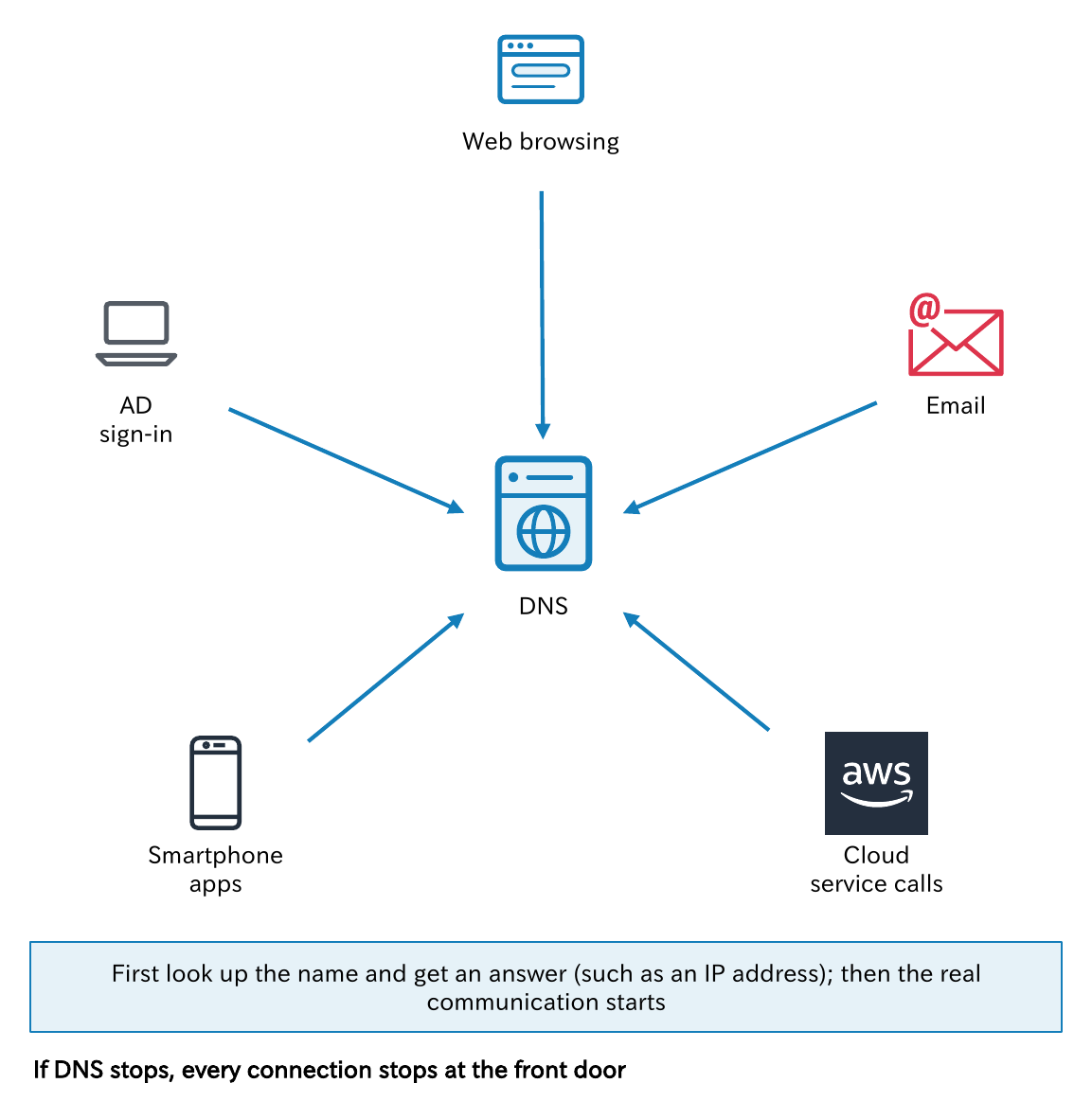
As the diagram shows, every connection first looks up a name and gets an answer (such as an IP address), and only then does the real communication begin. Put the other way around: if DNS stops, every connection stops at the front door.
- How this series is organized
- From the hosts file to DNS
- What name resolution is: every connection happens in two steps
- The three key players in DNS
- The flow of a single lookup
- Terminology (RFC 9499)
- The DNS servers around you
- Checking where an answer came from
- Think about it
- Summary
- The DNS Fundamentals series (12 parts)
How this series is organized
The series has 12 parts, in this order. Parts 1 to 3 are the foundation. The key players in this part and delegation in Part 2 are used in every part that follows, so make sure you have them down.
| Part | Theme | Main topics |
|---|---|---|
| Part 1 | What DNS is: the big picture | From hosts to DNS, the key players, the flow of name resolution |
| Part 2 | The domain name hierarchy and delegation | Root and TLDs, zones, NS and glue, internal domain names |
| Part 3 | How name resolution works | Recursive and iterative queries, caching and TTL, forwarding, OS behavior |
| Part 4 | DNS messages and transport | The header, UDP and TCP, EDNS, response codes |
| Part 5 | Resource records, part 1 | Zone files, SOA, NS, A/AAAA, CNAME |
| Part 6 | Resource records, part 2 | MX, SPF/DKIM/DMARC, SRV, PTR, CAA, HTTPS |
| Part 7 | Running authoritative DNS servers | Zone transfers, TTL design, change procedures, split horizon |
| Part 8 | Investigating with commands | dig, nslookup, Resolve-DnsName, resolvectl |
| Part 9 | DNS security | Cache poisoning, DNSSEC, encrypted DNS |
| Part 10 | DNS in the cloud and on corporate networks | Route 53, AD-integrated DNS, Kubernetes |
| Part 11 | Troubleshooting | Isolation steps, common failures, wrap-up |
| Part 12 | Design exercises | Thinking through five cases |
Part 8 covers the commands in detail. Until then, the earlier parts show dig output only as far as the explanation needs. At the end of this part, in “Checking where an answer came from,” you will use dig and Resolve-DnsName on your own PC to see whether an answer came from a cache or from an authoritative server. The “Think about it” questions at the end of each part are meant to be answered with your own workplace or home network in mind.
From the hosts file to DNS
Computers talk to each other using IP addresses, but strings of numbers are hard for people to remember.
On the early Internet (ARPANET), the mapping between names and addresses was kept in a single file (HOSTS.TXT) managed centrally by the SRI-NIC, and every host downloaded it periodically. Everyone had a copy of the same phone book.
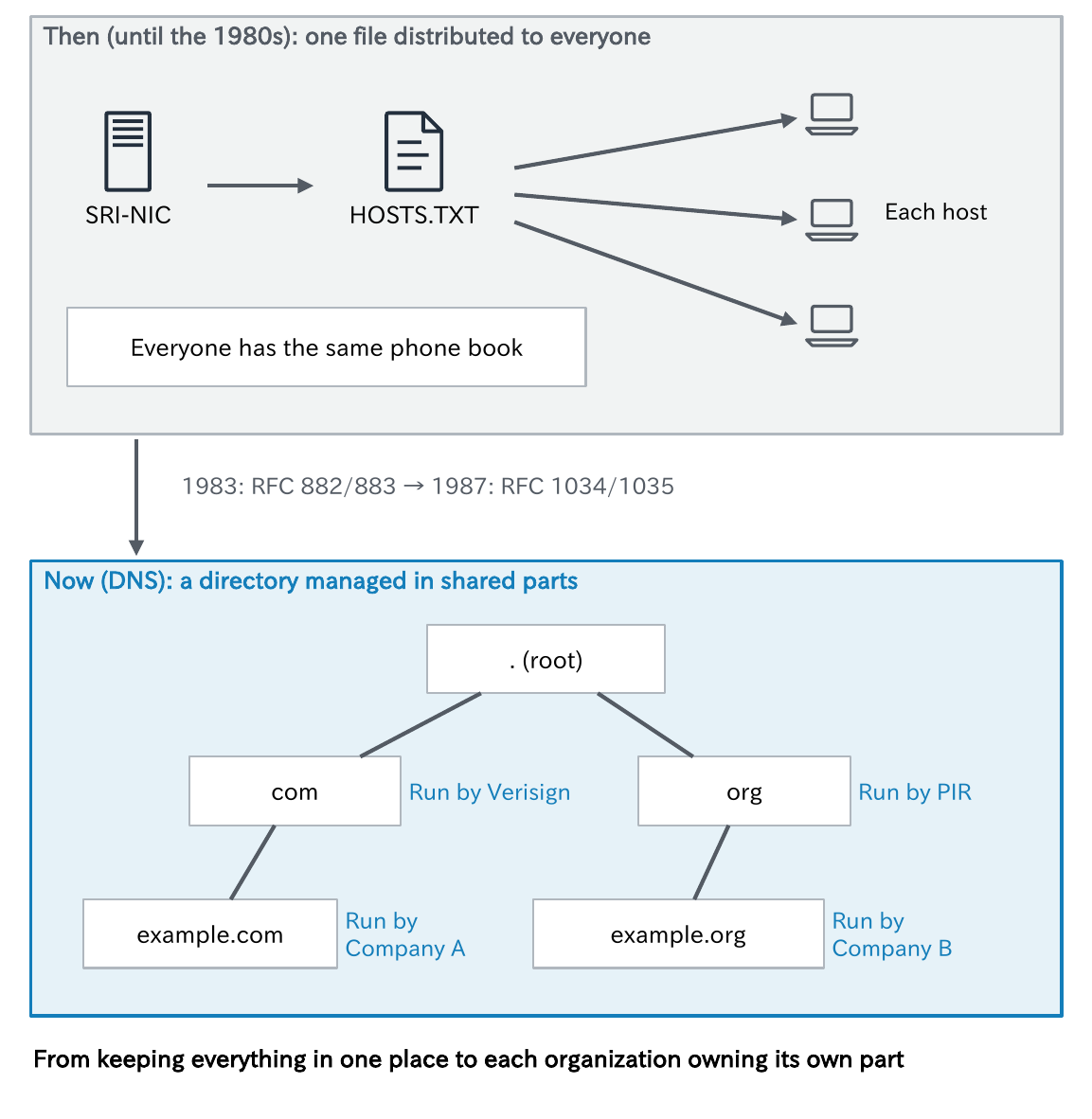
As the number of hosts grew, the update workload, the size of the file, and name collisions all hit their limits. DNS was born in 1983 with RFC 882 and 883, and took its current form in 1987 with RFC 1034 and 1035.
DNS is a distributed database that splits the phone book so that each organization manages only its own part. In the lower half of the diagram, under the root, com is run by Verisign and org by Public Interest Registry (PIR); below them, example.com is managed by Company A and example.org by Company B, each handling only its own part. The shift from “collect everything in one place” to “each organization owns its own part” is the biggest idea behind DNS.
The hosts file is still around
The hosts file still exists in operating systems today:
- Linux / macOS:
/etc/hosts - Windows:
C:\Windows\System32\drivers\etc\hosts
In most cases, the hosts file is consulted before DNS. If you add a line temporarily for testing and forget to remove it, that one server will keep connecting to the old address no matter how much you fix DNS. When “only this server is acting strange,” it helps to make a habit of checking the hosts file first.
Key points
• In the past, a single file (HOSTS.TXT) was distributed to everyone
• DNS is a distributed database that splits up name management so each organization owns its own part
• The hosts file still exists and is consulted before DNS. Watch out for leftover entries
What name resolution is: every connection happens in two steps
Name resolution means taking a name like www.example.com and finding the information needed to connect, such as its IP address.
- Forward lookup: name → address (for example, www.example.com → 192.0.2.10)
- Reverse lookup: address → name (for example, 192.0.2.10 → www.example.com)
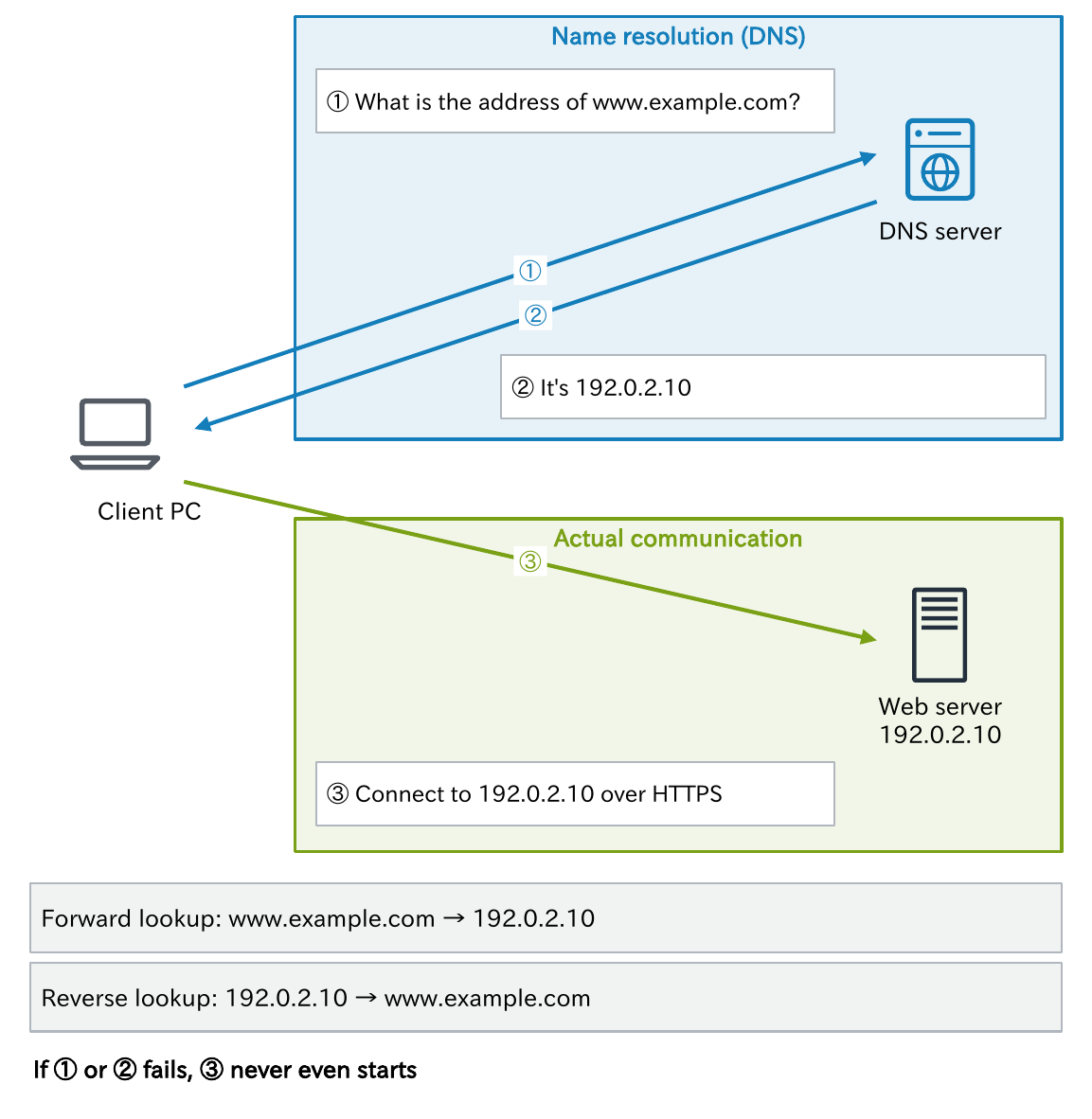
When you open a website in a browser, two separate exchanges take place: first, name resolution gets the address; then the browser connects to that address. In the diagram, steps ① and ② are name resolution, and step ③ is the actual communication.
These are two separate exchanges. So when someone says “it won’t connect,” the first thing to work out is whether name resolution failed or the connection after it failed. If ① or ② fails, ③ never even starts. Conversely, if name resolution succeeds but ③ fails, the problem is not DNS but the network or the server.
DNS answers more than addresses
DNS does not answer only with IP addresses. You can also look up many other kinds of information (resource records, covered in Parts 5 and 6), such as:
- Where to deliver email (MX)
- Where the Active Directory domain controllers are (SRV)
- Sender authentication information (TXT)
Reverse lookups matter too. Problems such as slow SSH logins or a failed vSphere deployment can be caused by a missing reverse lookup (Parts 10 and 11).
Key points
• Name resolution and the communication that follows are separate. First check which one failed
• There are forward lookups (name → address) and reverse lookups (address → name)
• Besides addresses, you can look up mail destinations, service locations, and more
The three key players in DNS
This is the most important part of understanding DNS. There are three kinds of players.
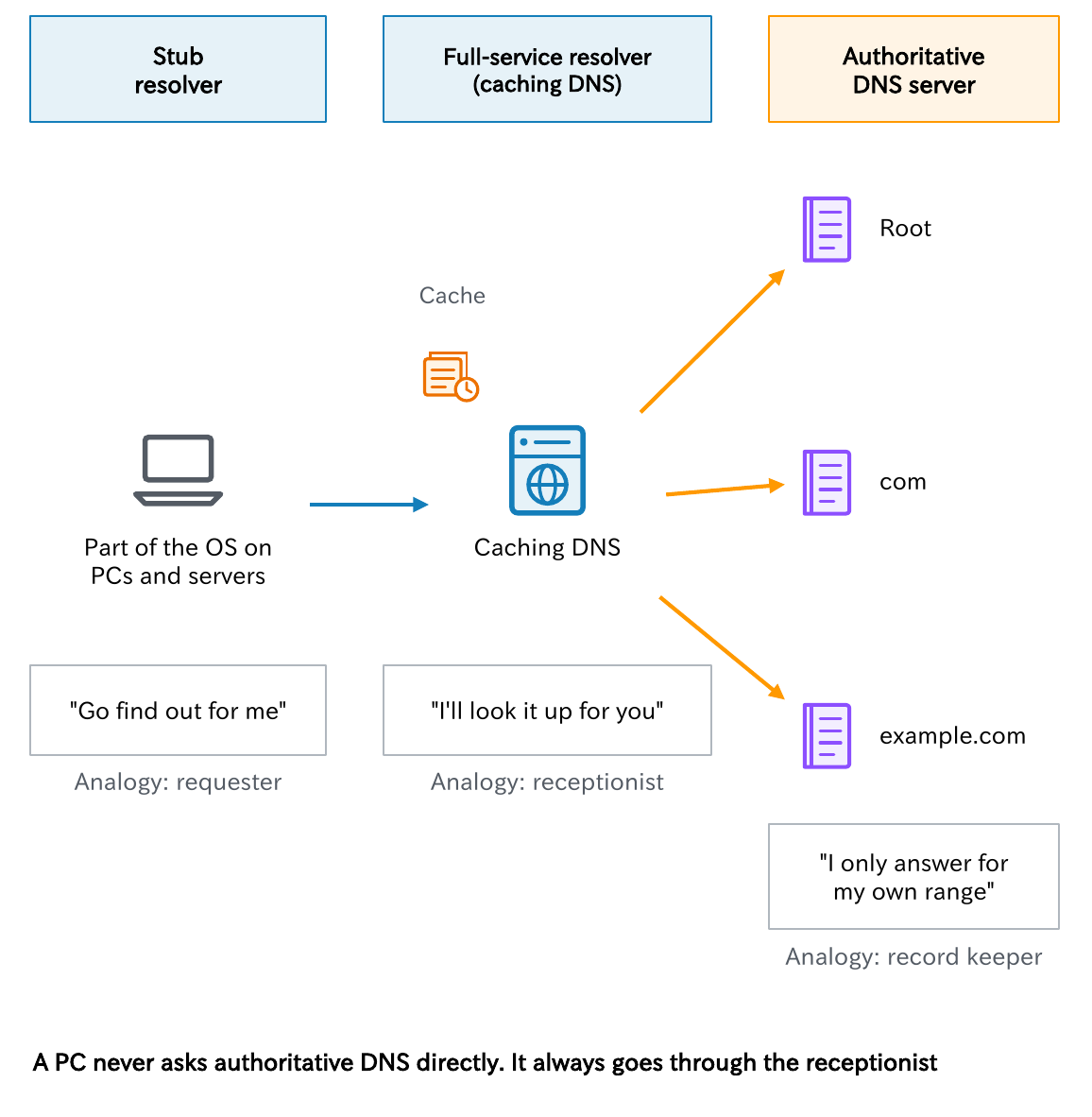
1. Stub resolver (the requester)
The component built into the OS of a PC or server that sends queries. It does not look for the answer itself; it just asks the configured DNS server to “go find out for me.”
2. Full-service resolver (the receptionist)
Usually called a caching DNS server. For the name it was asked about, it goes around looking for the server that has the answer, starting from the root, and remembers the answer for a set period of time (the cache). Its role is “I’ll look it up for you.”
3. Authoritative DNS server (the record keeper)
It holds the “correct answers” for the range it is responsible for (its zone) and answers only for that range. Its role is “I only answer for my own range.”
As an analogy, the stub resolver is the requester, the full-service resolver is the receptionist who does the research on the requester’s behalf, and the authoritative DNS server is the record keeper in each department.
The important point is that the “DNS server” you enter in a PC’s network settings is, as a rule, a full-service resolver (caching DNS). A PC does not ask authoritative DNS servers directly. It always asks through the receptionist.
Key points
• One side asks (stub), one side goes around looking (full-service), one side holds the answers (authoritative)
• The DNS server configured on a PC is, as a rule, a full-service resolver
• An authoritative DNS server answers only for the zones it is responsible for
The flow of a single lookup
Let’s follow what happens when a PC looks up www.example.com for the first time.
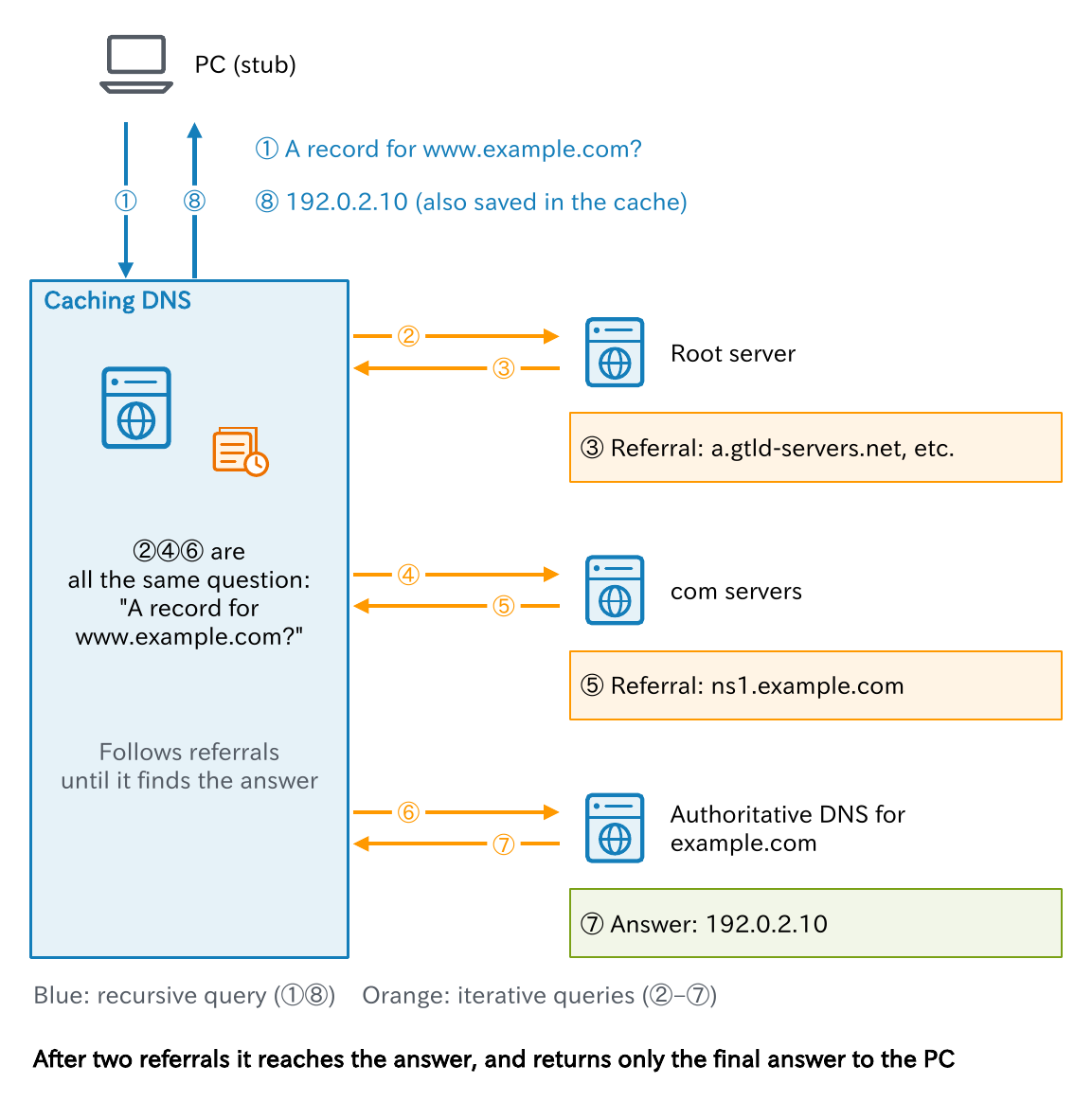
- ① The PC’s stub resolver sends a query to its configured caching DNS server.
- If the answer is not in its cache, the caching DNS server ② asks a root server.
- The root does not have the answer, but ③ refers it onward: “Ask the com servers about com” (this is delegation, Part 2).
- Next, it ④ asks a com server and ⑤ is referred to the servers for example.com.
- When it ⑥ asks the authoritative DNS server for example.com, ⑦ it finally gets the answer: “192.0.2.10.”
- The caching DNS server ⑧ returns that answer to the PC and stores it in its cache at the same time.
What’s interesting is that ②, ④, and ⑥ are all the same question: “What is the A record for www.example.com?” The caching DNS server keeps asking the same question and follows referrals until it finds the answer.
In terms of the phone analogy, the receptionist calls headquarters, then the branch office, then the responsible department in turn, and passes the answer from the person in charge back to the requester. In the diagram, blue (① and ⑧) is a recursive query and orange (② to ⑦) is an iterative query; Part 3 covers the difference in detail.
And from the second lookup on, the answer comes from the cache, so ② to ⑦ do not happen at all. DNS runs smoothly across the whole Internet thanks to this caching.
Key points
• The caching DNS server follows referrals in order: root → TLD → the responsible zone
• Each “referral” is a delegation. In the end, the authoritative DNS server returns the answer
• Answers are cached, so ② to ⑦ are skipped from the second lookup on
On a corporate (Active Directory) network
On a company PC (one joined to a domain), the configured caching DNS server is usually an Active Directory domain controller (DC). The DC doubles as a DNS server and answers as the authoritative DNS server itself for the company’s internal domain name (for example, corp.example.com). For names outside the company, the DC finds the answer through a forwarder (or by iterative queries starting from the root).
On top of that, when a PC signs in, it also uses DNS (SRV records) to find a DC. So inside a company, if DNS stops, it affects not only the web and email, but also sign-in and authentication. AD-integrated DNS is explained in Part 10, and forwarding in Part 3.
Terminology (RFC 9499)
Because DNS has a long history, the same things go by many names. Here is how the names used in this series map to the terms in RFC 9499 (2024; the DNS terminology document that replaced RFC 8499) and to what people commonly call them in the field.
| Name in this series | RFC 9499 term | Common names in the field | Role |
|---|---|---|---|
| Stub resolver | stub resolver | resolver, DNS client | Only sends queries; does not look for answers |
| Full-service resolver (caching DNS server) | full-service resolver, recursive resolver | caching server, recursive server | Accepts recursive queries, finds answers, and caches them |
| Authoritative DNS server | authoritative server | authoritative server, content server | Holds the correct answers for a zone and answers for that zone |
| Forwarder | forwarder | DNS proxy, DNS relay | Passes the queries it receives on to another server |
| Recursive query | recursive mode | — | Asks the server to “find the final answer” (Part 3) |
| Iterative query | iterative resolution | non-recursive query | Asks the server to “answer with what you know” (Part 3) |
Be careful: if you just say “the DNS server,” it can mean either a caching DNS server or an authoritative DNS server. When a conversation or a ticket says “we changed the DNS server,” always confirm whether it’s about the cache or the authoritative side. Mix these up, and the conversation will go nowhere.
The DNS servers around you
Which caching DNS server do the devices you use every day actually ask? Let’s sort it out by situation.
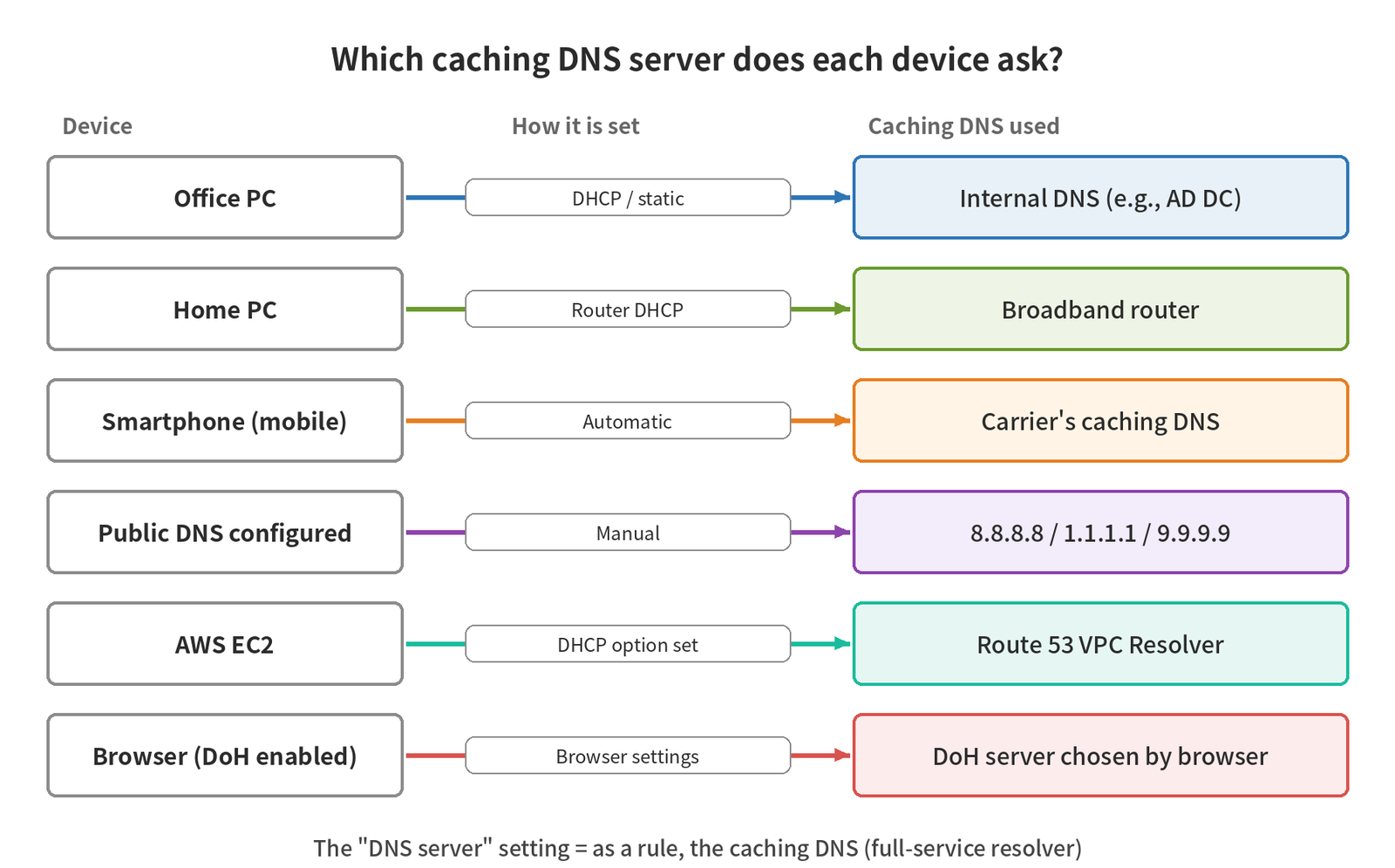
| Situation | Caching DNS used by the device | How the setting is delivered | Notes |
|---|---|---|---|
| Office | An internal DNS server such as an AD domain controller | DHCP or static configuration | Resolves both internal and external names. External names usually go through a forwarder |
| Home | The broadband router (DNS proxy) | The router’s DHCP | The router forwards queries to the ISP’s caching DNS |
| Smartphone (mobile network) | The mobile carrier’s caching DNS | Automatically when connecting | Can be switched to encrypted DNS with Android’s “Private DNS” and similar settings (Part 9) |
| Public DNS | 8.8.8.8 (Google), 1.1.1.1 (Cloudflare), 9.9.9.9 (Quad9), etc. | Set manually by the user | Cannot resolve internal names. Follow your company’s policy before using it at work |
| Cloud (AWS) | The VPC’s Route 53 VPC Resolver (the VPC CIDR + 2, or 169.254.169.253) | DHCP option set | Can resolve private hosted zones (Part 10) |
| Browser | May use its own encrypted DNS (DoH), separate from the OS | Browser settings | May ask a different server than the OS is configured to use (Part 9) |
The browser in the last row is easy to overlook. You may check the OS DNS settings and think “it’s pointing at the right server,” but if the browser is asking an external server on its own over DoH, internal names may fail to resolve.
You can check which DNS server you are using with the following commands (see Parts 3 and 8 for details).
# Windows
ipconfig /all

# Linux (systemd-resolved)
resolvectl status

# Linux (traditional configuration file)
cat /etc/resolv.conf
Checking where an answer came from
Finally, let’s try dig a little. Even for the same name, the response looks different depending on whether you ask the caching DNS server or ask the authoritative DNS server directly.
$ dig www.example.com
;; flags: qr rd ra; QUERY: 1, ANSWER: 1, AUTHORITY: 0, ADDITIONAL: 1
www.example.com.		259	IN	A	192.0.2.10

$ dig @ns1.example.com www.example.com +norec
;; flags: qr aa; QUERY: 1, ANSWER: 1, AUTHORITY: 0, ADDITIONAL: 1
www.example.com.		300	IN	A	192.0.2.10
(Only the key lines of the output are shown.)
- The first query goes to the configured caching DNS server. There is no aa in the flags, which tells you this is an answer the caching DNS server looked up.
- The second asks the authoritative DNS server directly, without recursion (
+norec). The aa (Authoritative Answer) flag is set. - Look at the TTL as well. The authoritative DNS server returns the configured value, 300, while the caching DNS server returns the remaining time, 259.
Windows does not include dig by default, so use Resolve-DnsName in PowerShell.
PS> Resolve-DnsName www.example.com -NoRecursion -Server ns1.example.com
Name              Type   TTL   Section    IPAddress
www.example.com   A      300   Answer     192.0.2.10
Resolve-DnsName does not show the flags, but you can tell the same thing from whether the TTL is still the configured value or has counted down.
Why does this matter? Because if you mistake where an answer came from, you will look in the wrong direction when troubleshooting.
- “The authoritative DNS server is correct, but the caching DNS server is stale” → a caching problem
- “The authoritative DNS server is already wrong” → a zone configuration problem
Part 8 explains in detail how to read dig and Resolve-DnsName output (flags, TTL, +trace).
Think about it
- Find out which DNS server your PC is using. Is it a caching DNS server or an authoritative DNS server? Is it different at the office, while connected to a VPN, and at home?
- Do any of your servers have entries in their hosts file? Can you explain why they are there and what would happen if someone forgot to remove them?
- When someone says “the website won’t open,” how do you tell a name resolution failure from a failure in the connection that follows?
Hint: Look at “two steps” in this article, the commands in “The DNS servers around you,” and the aa flag and TTL in “Checking where an answer came from.”
Summary
- DNS is a distributed database that divides name management among organizations. The hosts file is still consulted before DNS
- Every connection has two steps: name resolution and the actual communication. When something fails, first check which step failed
- There are three key players: the stub resolver (requester), the caching DNS server (receptionist), and the authoritative DNS server (record keeper)
- The caching DNS server follows referrals from root → TLD → the responsible zone to find the answer, then caches it
- Whenever you hear “the DNS server,” always confirm whether it means the cache or the authoritative side
Next time, we look at the hierarchy in which DNS names are managed and how delegation divides up the work.
The DNS Fundamentals series (12 parts)
All 12 parts with a reading guide: DNS Fundamentals
- What Is DNS? How Name Resolution Works and Its Three Key Players (this article)
- The domain name hierarchy and delegation
- How name resolution works
- DNS messages and transport
- Resource records, part 1
- Resource records, part 2
- Running authoritative DNS servers
- Investigating with commands
- DNS security
- DNS in the cloud and on corporate networks
- DNS troubleshooting
- DNS design exercises
This series is the English edition of 【DNS入門】, originally written in Japanese.
コメント